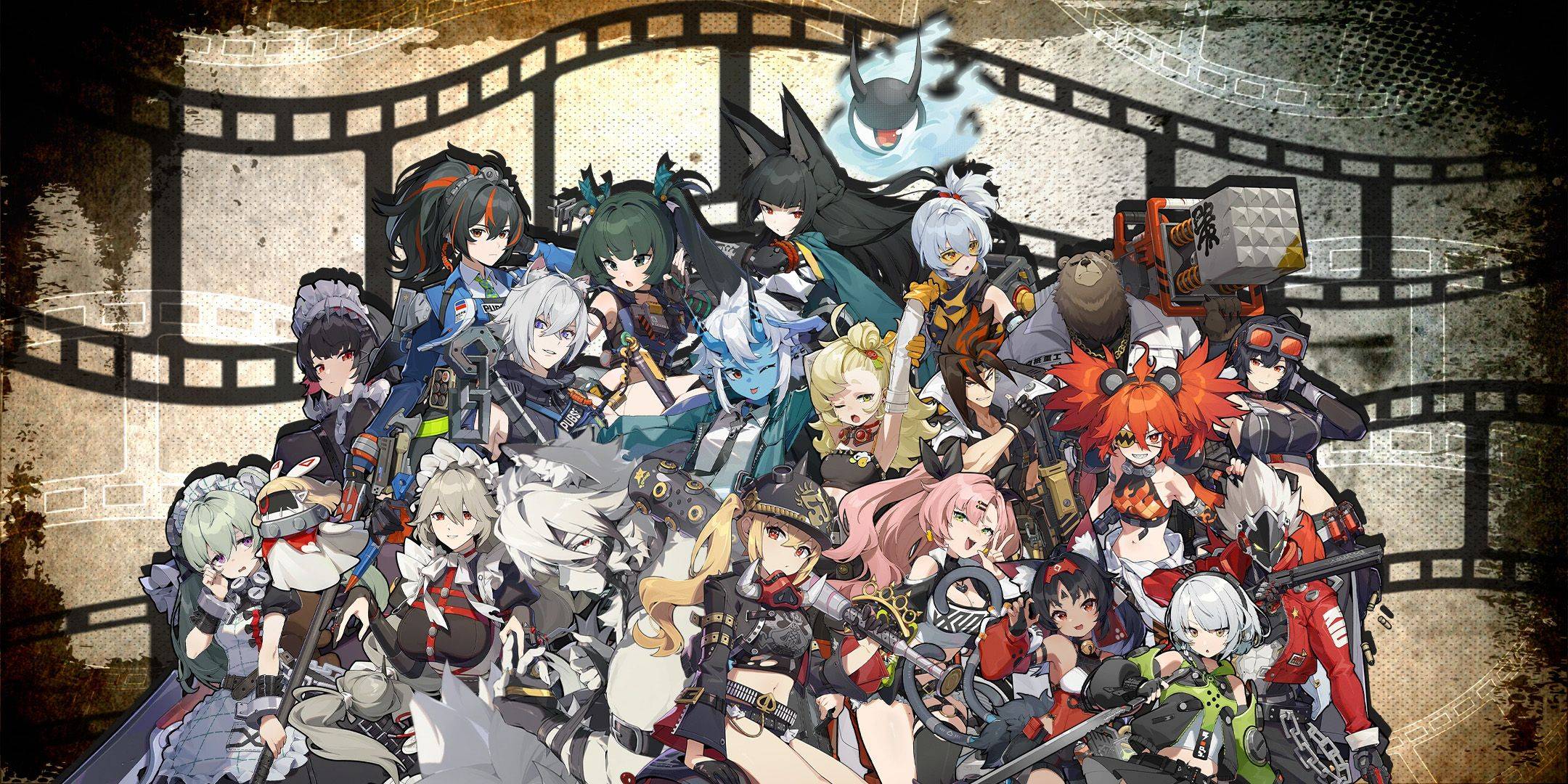

Many games face optimization challenges upon release, which are often addressed through subsequent patches. However, *FragPunk* has impressed players with its smooth performance right from the start. While there's always room for improvement in frame rates, here's a guide to the best *FragPunk* settings and crosshair codes to optimize your gameplay experience.
FragPunk Settings Overview
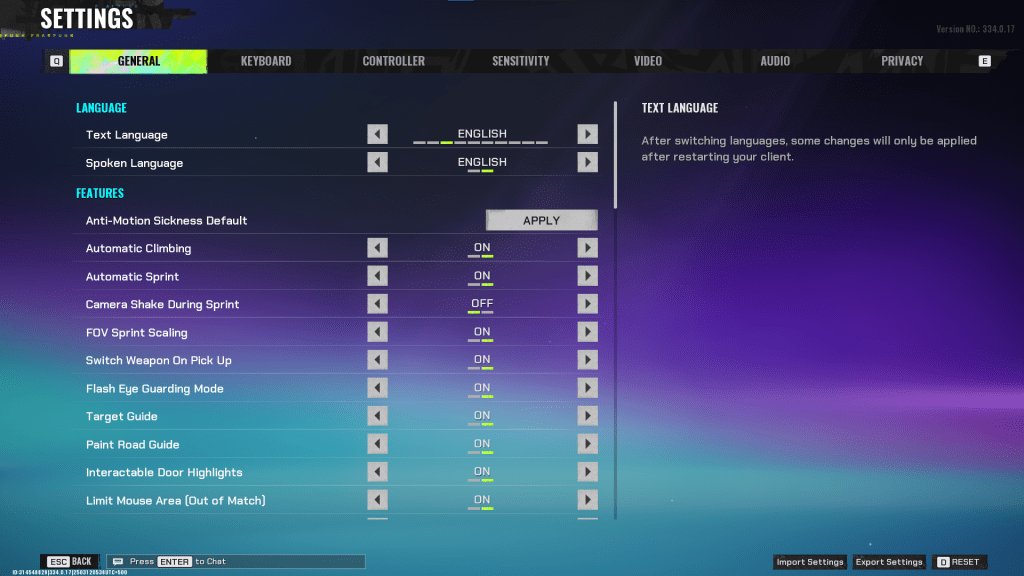
*FragPunk* settings are organized into five tabs, with the Video tab being the key to performance optimization. The other tabs mostly contain quality-of-life and accessibility options that don't directly affect performance but can enhance your gameplay. We'll focus on the settings that can improve your experience, while other settings can be left at default or adjusted to your preference.
General
The General tab is home to a variety of quality-of-life and personal preference settings. Experiment with these options to find what suits your playstyle best. Here are some recommended settings:
- Automatic Climbing – On
- Automatic Sprint – On
- Camera Shake During Sprint – Off
- FOV Sprint Scaling – On
- Flash Eye Guarding – On
- Keep Player Centered – On
- Minimap Orientation Rotate – On
- Performance Metrics – On
- Ping Visibility – 1
- Hide Overly Visible Skin Components from Enemies – On
The General tab also includes options for customizing your crosshair, which we'll discuss in detail later.
Keyboard/Controller
These tabs allow you to adjust your key bindings. With Automatic Sprint enabled, the Shift key becomes available, and it's recommended to bind the walk function to Shift, mirroring common setups in tactical shooters like *VALORANT* and *CS2*.
Sensitivity
Sensitivity settings are highly personal. Feel free to experiment or use online calculators to convert sensitivity from other games like *VALORANT* or *CS2* to find your perfect setting.
Audio
For optimal audio settings, set the Sound Effects volume to a comfortable level. Lower the Music, Announcer, and Button Volume. Enable Character Voice Simplification to reduce unnecessary character banter. Voice Chat settings are up to your preference.
Related: FragPunk Codes (March 2025)
FragPunk Best Video Settings
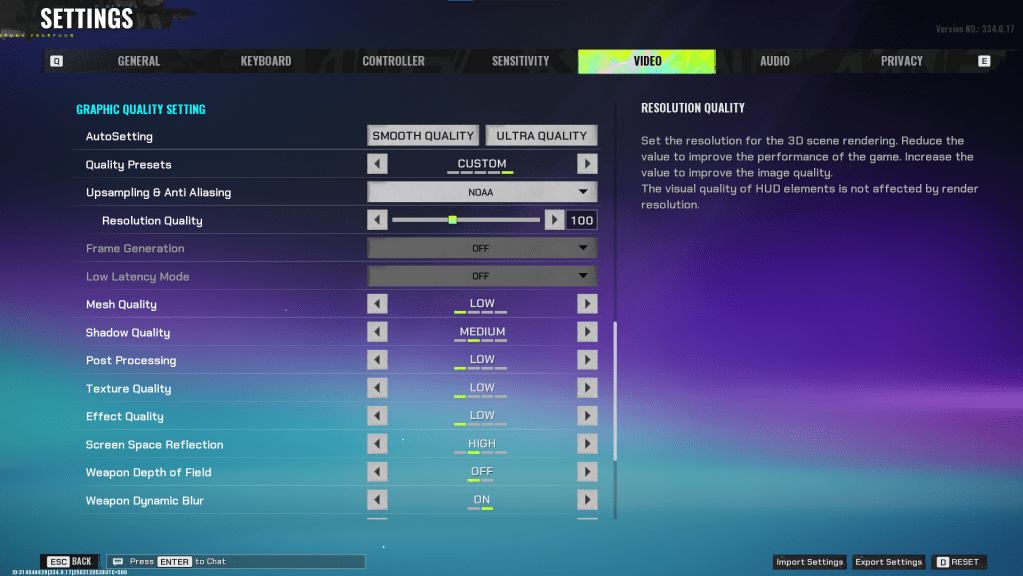
The Video tab is where you'll find settings that significantly impact performance. These settings prioritize performance over visual quality, which is crucial for a competitive shooter like *FragPunk*. If you have a powerful PC, you might be able to increase some quality settings, but these are the best settings for most players:
Display
| Display Screen | Your Preferred Monitor |
| Display Mode | Fullscreen |
| Display Ratio | Monitor’s Default |
| Display Resolution | Monitor’s Native |
| FOV | 125 |
| Filter | Default or Personal Preference |
| Post Processing Intensity | None or Low |
| Menu Frame Rate Limit | 60 |
| Gameplay Framerate Limit | Monitor’s Refresh Rate |
| Out of Focus Framerate Limit | 60 |
| Brightness | 1 or adjust according to preference |
| Sharpen | Same as Brightness |
| Vertical Sync | Off |
| Antii-tearing | Off |
| Graphics API | Experiment with DX11 and 12 to see what works best with your system |
Minimalistic Graphics
*FragPunk* offers a unique Minimalistic Graphics option, which reduces visual effects for a 15-20 fps gain. While this significantly impacts visual quality, it's worth considering for performance. If you choose this option, use the following settings:
| Material Complexity | Minimalistic |
| Light Complexity | Minimalistic |
| Scene Saturation | Minimalistic |
| Effects Complexity | Minimalistic |
| Dead Effect | Off |
| Damage Numbers | On |
| UI Info Simplification | On |
| UI Animation Simplification | Off |
Graphics Quality Settings
| Quality Presets | Custom |
| Upscaling and Anti-Aliasing | Depending on your GPU, choose FSR 2 with Performance for AMD GPUs or NVIDIA Image Scaling with Performance for NVIDIA GPUs. You can also just set it to NOAA with 100% if you don’t want to use any upscaling. |
| Mesh Quality | Low |
| Shadow Quality | Medium |
| Post Processing | Low |
| Texture Quality | Low |
| Effect Quality | Low |
| Screen Space Reflections | High |
| Weapon Depth of Field | Off |
| Weapon Dynamic Blur | On |
| Scene Dynamic Blur | Off |
| Ray Tracing | Off |
| SSGi | On |
| UI Resolution | High. Doesn’t affect in-game FPS. |
| Animation Physical | Off |
FragPunk Best Crosshair Codes
In any shooter, a well-chosen crosshair can enhance your aiming accuracy. While it won't make you a pro overnight, it's a helpful tool. Here are some effective crosshair codes you can try in *FragPunk*:
Classic Plus
azazafzaezaezaezaezfczazaabzaafzazaaabzazaczaczaczaczfcbzbzaabzaafzazaaabzFFFFFFzFFFFFFClassic Dot
czazafzaezagzagzagzfczbzaabziedzazaaabzazaczaczaczaczfcbzbzaabzaafzazaaabzFFFFFFzFFFFFFPrecision Plus
azazafzaezaezaezaezabzazaabziedzazaaabzazaczaczaczaczfcbzbzaabzaafzazaaabzFFFFFFzFFFFFFClassic T Shaped
bzazafzaezaezaezaezabzbzaabziedzazaaabzazaczaczaczaczfcbzbzaabzaafzazaaabzFFFFFFzFFFFFThese are the best *FragPunk* settings and crosshair codes to ensure you get the most out of your gameplay. Enjoy the smooth performance and competitive edge that *FragPunk* offers.
*FragPunk is available now on PC.*
 Latest Downloads
 Downlaod


 Top News