
Quick Links
For anyone diving into the endgame of Path of Exile 2, setting up a suitable loot filter is essential. Loot filters not only clear up on-screen clutter, making your mapping sessions more enjoyable, but they also enhance your gameplay by highlighting only the items that truly matter, saving you from the hassle of sifting through irrelevant drops.
FilterBlade, renowned for its utility in Path of Exile 1, has now been updated to support PoE 2. Here's a comprehensive guide on how to leverage it effectively.
How to Set Up FilterBlade Loot Filters in Path of Exile 2
- Visit the FilterBlade Website: Navigate to the FilterBlade website to begin the setup process.
- Select PoE 2: Choose Path of Exile 2 from the options provided.
- Choose the Default Filter: The NeverSink filter will be selected by default.
- Adjust Strictness Level: Use the slider to set your preferred strictness level (more details on this below).
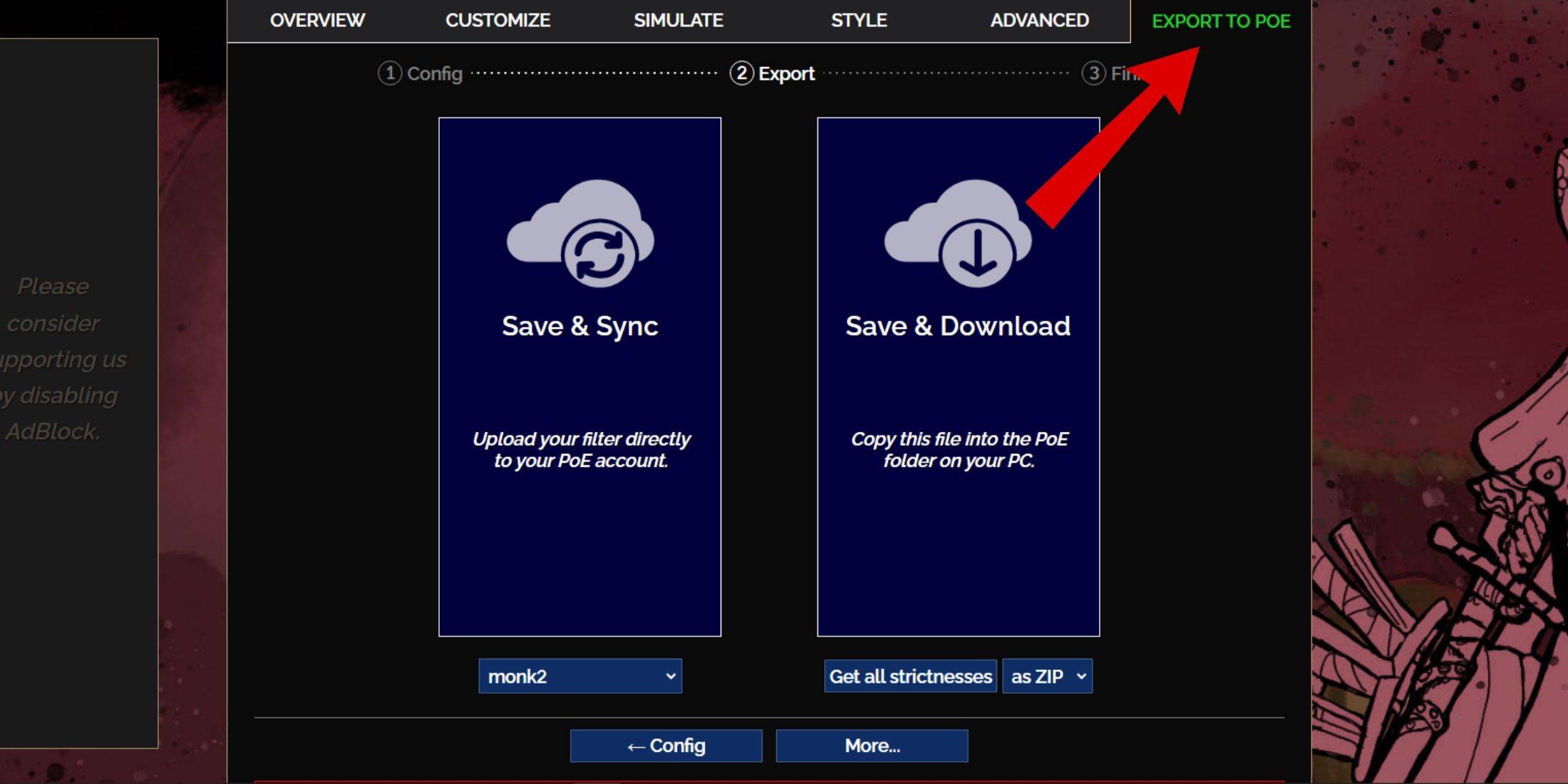
- Export the Filter: Click on the 'Export to PoE' tab located at the top right.
- Name Your Filter: Enter a name for your filter; it can be anything you like.
- Sync or Download: Decide between 'Save & Sync' or 'Save & Download'.
- Save & Sync automatically uploads the filter to your PoE 2 account, ensuring any updates are directly applied to your game.
- Save & Download allows you to save the filter file on your PC, which is useful for comparing different strictness levels or starting a new campaign.
- Apply the Filter in PoE 2: Launch PoE 2, go to Options > Game.
- If you chose 'Sync', select the FilterBlade filter from the dropdown menu.
- If you chose 'Download', navigate to the folder where you saved the filter and select it.
With these steps, your FilterBlade loot filter will be operational in Path of Exile 2.
Which Loot Filter Strictness Should You Choose?
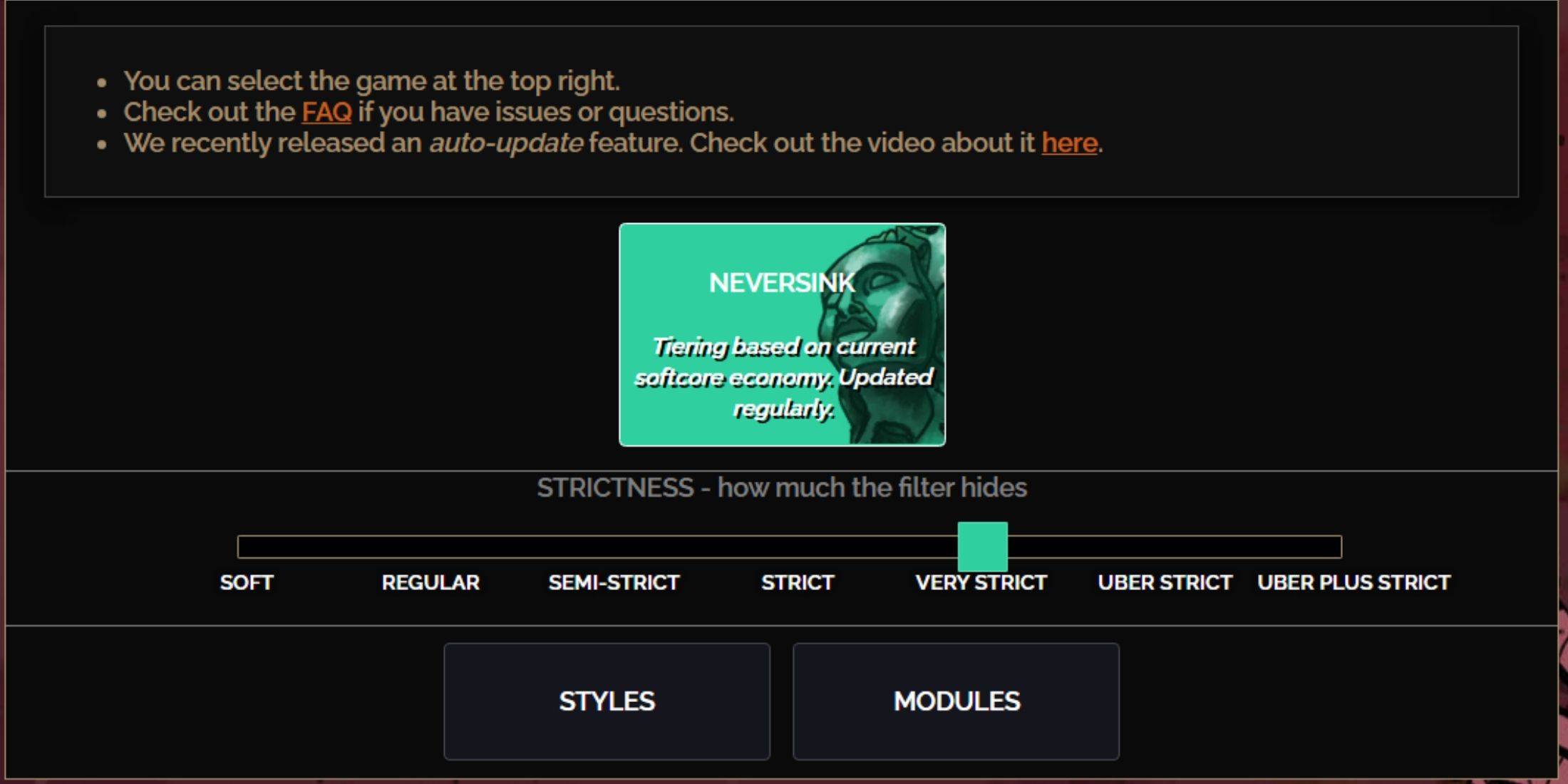
Selecting the right strictness level for the NeverSink FilterBlade preset is crucial as it determines what items you'll see in-game. Here's a breakdown of the seven strictness levels:
| Strictness | Effect | Best For |
|---|---|---|
| Soft | Highlights valuable materials and items without hiding anything. | Act 1-2 |
| Regular | Hides only items with no crafting potential or sale value. | Act 3 |
| Semi-Strict | Hides items with low potential or limited value. | Act 4-6 |
| Strict | Hides most items without high turnover. | Early Mapping phase (Waystone Tier 1-6) |
| Very Strict | Hides low-value rare items and crafting bases, including Waystone Tier 1-6. | Mid to late mapping phase (Waystone Tier 7+) |
| Uber Strict | Hides almost all non-tiered rare items and crafting bases, focusing on complete currency like Regal/Alchemy/Exalted/Chaos Orbs. Hides Waystones Tier 1-13. | Late mapping phase (Waystone Tier 14+) |
| Uber Plus Strict | Hides nearly everything except valuable currencies and high return rares and uniques. Hides Waystones Tiers 1-14. | Ultra endgame mapping phase (Waystone Tier 15-18) |
For players embarking on a second or third campaign run, starting with the Semi-Strict level is advisable. The Soft and Regular levels are ideal for new league starts where every item is crucial for character progression, similar to a Solo Self-Found (SSF) run.
To view items hidden by the filter, press the highlight key (ALT on PC). FilterBlade's unique feature adjusts the size of item names when using ALT, making them nearly invisible on the map, which aids in quickly picking up desired items.
How to Customize FilterBlade Loot Filter in PoE 2
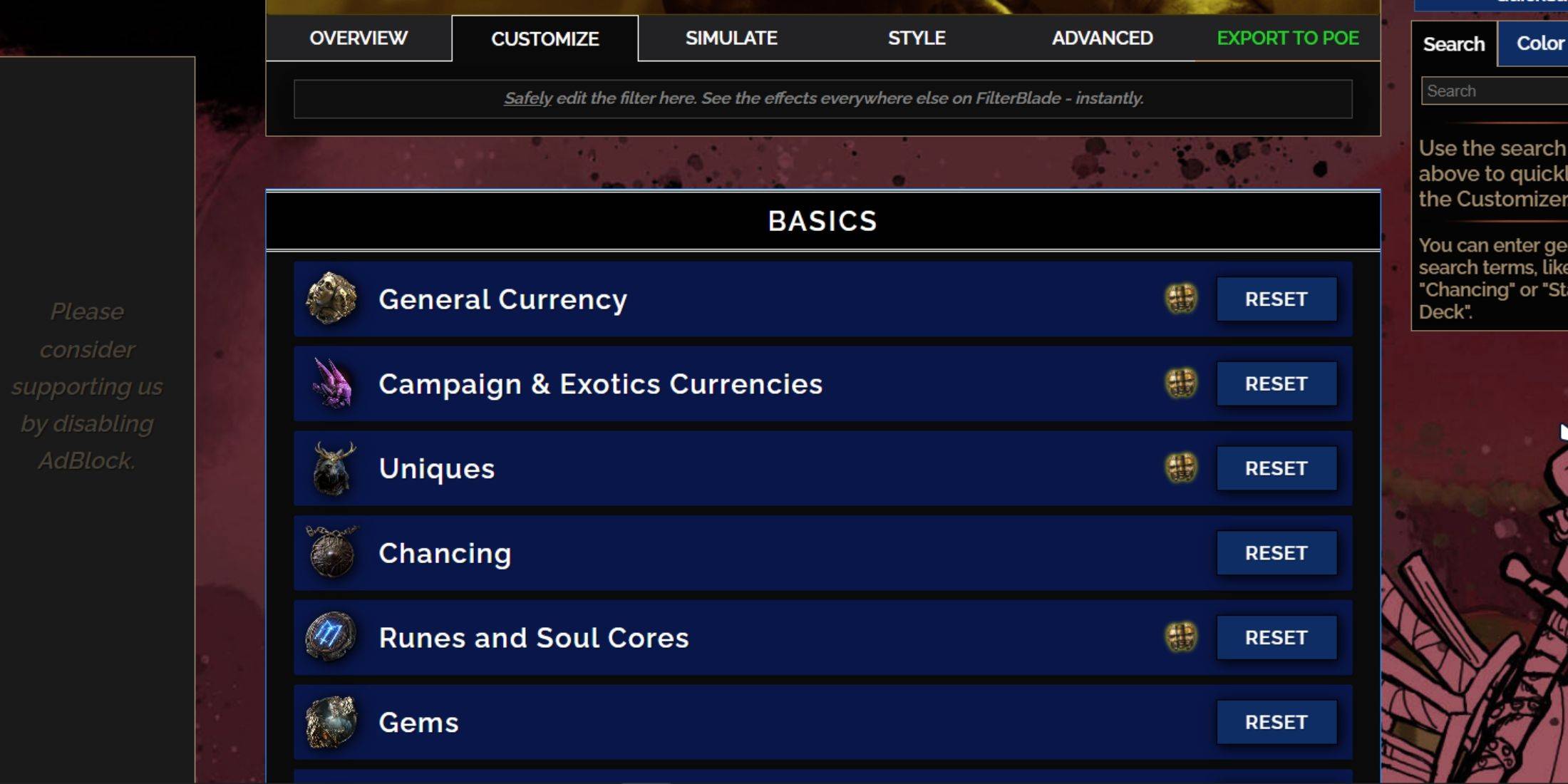
FilterBlade stands out due to its user-friendly customization options, allowing you to modify preset filters without delving into code.
How to Use the Customize Tab in FilterBlade
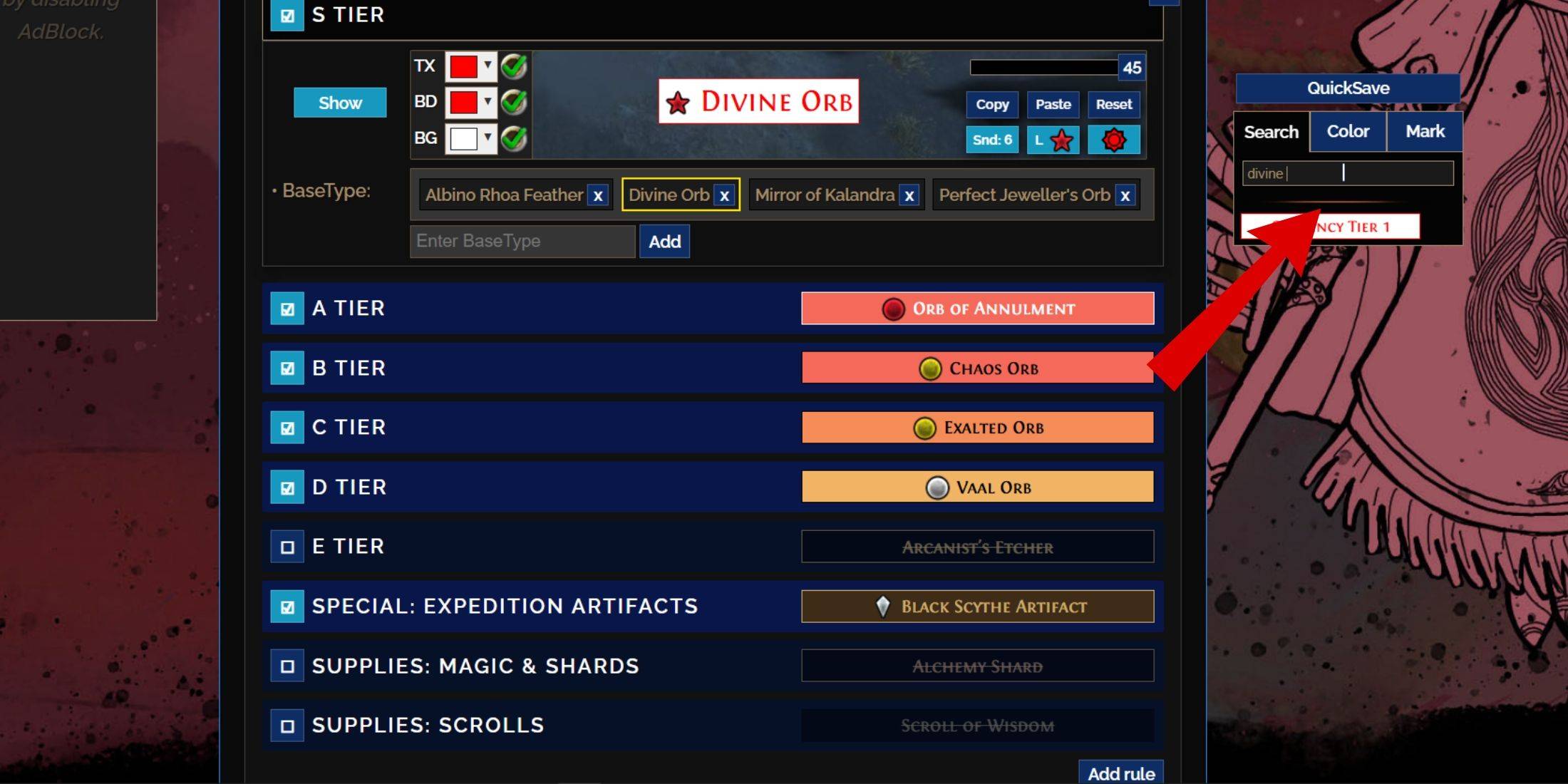
For detailed customization, navigate to the 'Customize' tab next to Overview. Here, you'll find all possible drops in PoE 2 categorized into sections and subsections, offering extensive customization options.
For instance, to alter the appearance of a  Divine Orb, simply search for it using the search bar. The S Tier General Currency tab will open, displaying all possible modifications with visual representations.
To preview the sound of an item drop, click on the in-game showcase icon.
How to Change Colors and Sounds in FilterBlade
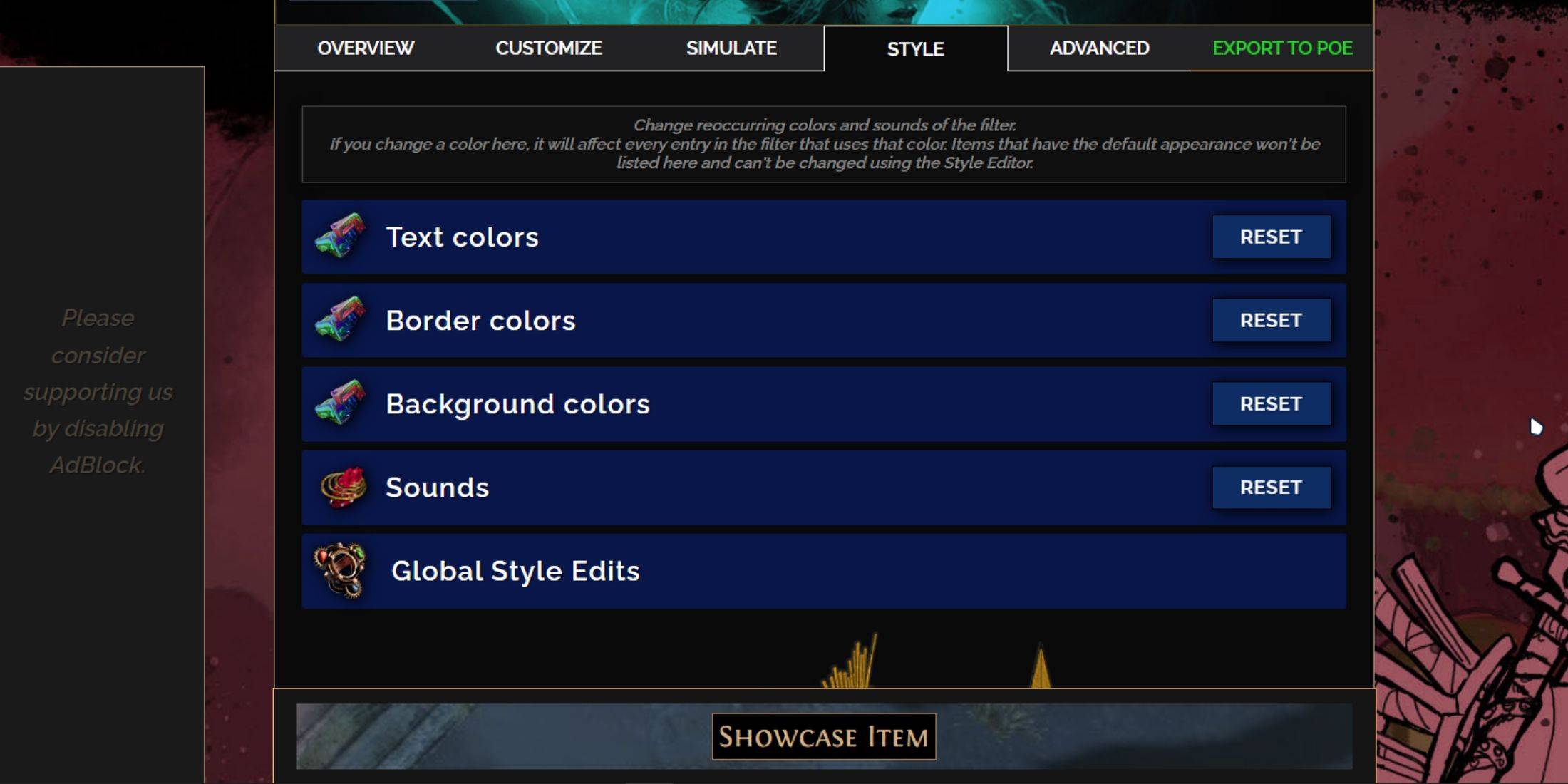
For individual or small group item modifications, use the 'Customize' tab. For broader changes affecting the entire filter, head to the 'Styles' tab. Here, you can adjust the Text, Border, and Background of dropped items, as well as the audio cues for valuable drops.
Color changes are straightforward, with visual previews available. For individual item adjustments, return to the 'Customize' tab.
Sound effects can be customized using the dropdown menu. You can upload your own .mp3 files by selecting 'Custom' or choose from community-added sounds under 'Game & Community Sounds'. Experimentation is encouraged, and you can always revert changes by selecting 'Reset'.
For those new to loot filter customization, exploring public Modules can be a great way to start. These community-made presets offer visual and auditory modifications to enhance your gameplay experience.
 Latest Downloads
 Downlaod




 Top News