

This guide explains how to enable and use SSH on your Steam Deck for remote access to your files. The Steam Deck's desktop mode allows for more than just gaming, making remote file access a valuable feature.
Enabling SSH on the Steam Deck
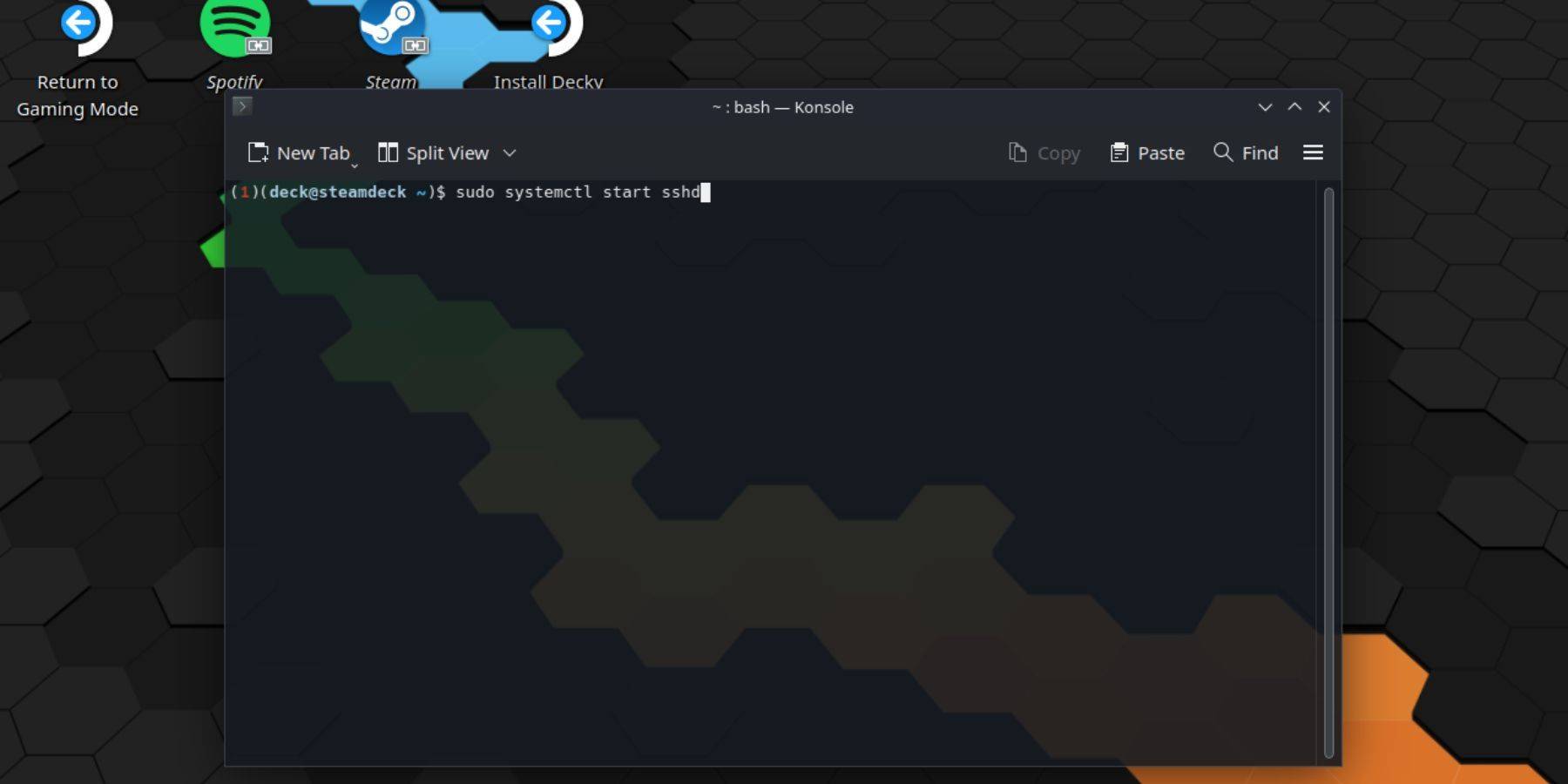 Follow these steps to enable SSH:
- Power on your Steam Deck.
- Press the Steam button.
- Navigate to Settings > System > System Settings > Enable Developer Mode.
- Press the Steam button.
- Select Power > Switch to Desktop Mode.
- Open Konsole from the Start menu.
- Set a password (if you haven't already) using the command:
passwd. - Enable SSH using:
sudo systemctl start sshd. - To ensure SSH starts after a reboot, use:
sudo systemctl enable sshd. - You can now access your Steam Deck remotely using a third-party SSH client.
Important: Avoid modifying or deleting system files to prevent OS corruption.
Disabling SSH on the Steam Deck
To disable SSH:
- Open Konsole from the Start menu.
- Use
sudo systemctl disable sshdto prevent SSH from starting automatically on reboot. To immediately stop SSH, usesudo systemctl stop sshd.
Connecting to the Steam Deck via SSH
 After enabling SSH, use a third-party application like Warpinator for easy file transfer. Install Warpinator on both your Steam Deck and your PC, then launch it on both devices simultaneously for simple drag-and-drop file transfers.
Alternatively, if you use a Linux PC, you can connect directly using your file manager. Enter sftp://deck@steamdeck in the address bar and provide the password you set earlier.

 Latest Downloads
 Downlaod




 Top News