
Unleash Retro Gaming on Your Steam Deck: A Comprehensive Guide to Playing Sega Master System Games
The Sega Master System, a classic 8-bit console, boasted a library of fantastic games, including unique versions and exclusives like Golden Axe, Double Dragon, and Streets of Rage. Even titles like Mortal Kombat and Asterix & Obelix pushed the system's boundaries, offering near-16-bit quality.
While playing these titles on modern hardware might seem challenging, the Steam Deck, combined with EmuDeck, makes it surprisingly easy. This guide details how to install and optimize Sega Master System emulators on your Steam Deck.
Updated January 15, 2024: This guide has been updated to include Decky Loader and Power Tools for enhanced performance and to address potential issues following Steam Deck updates.
Before You Begin:
- Power Up: Ensure your Steam Deck is fully charged or connected to power.
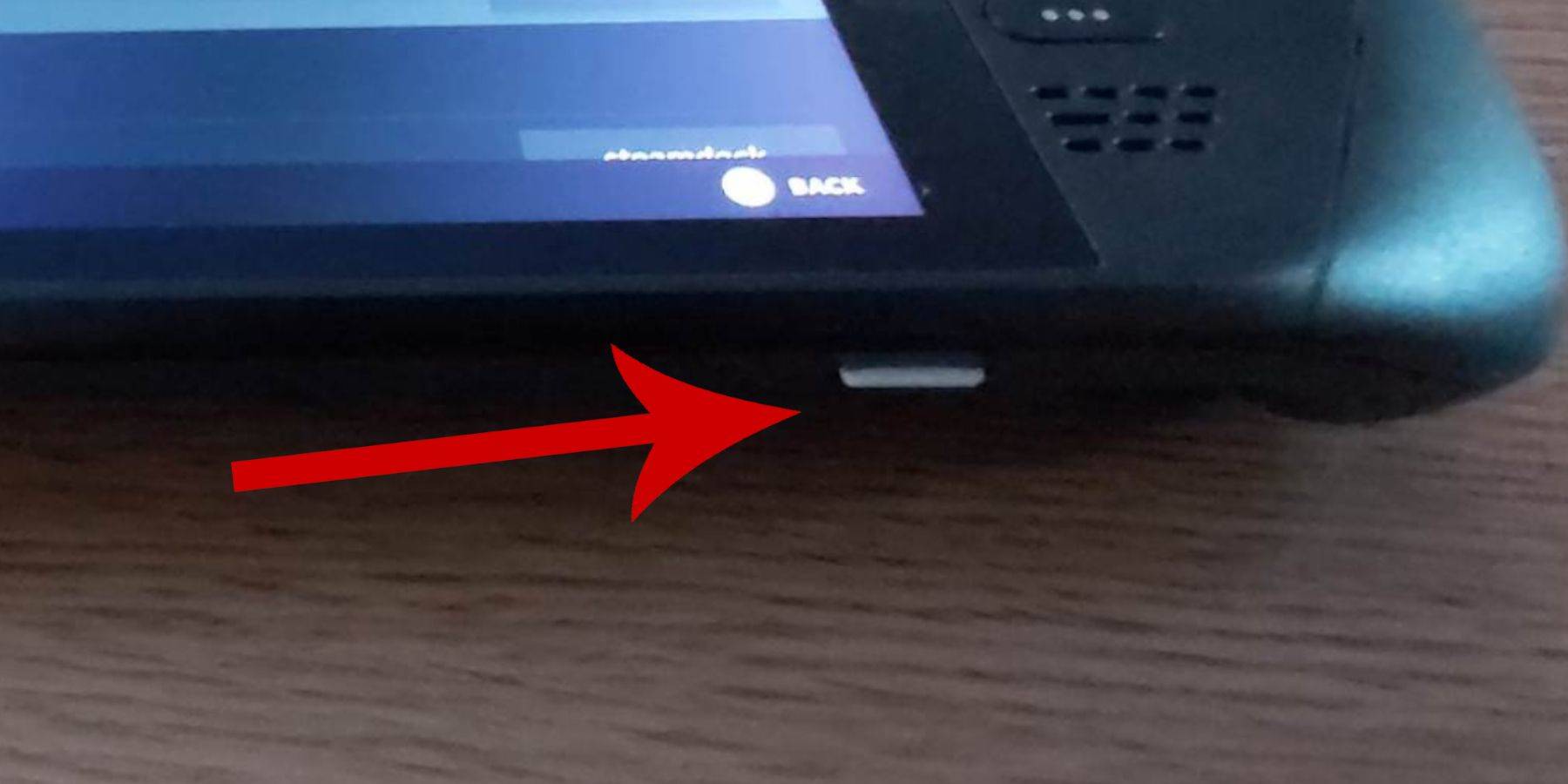
- Storage: A high-speed microSD card (recommended) or external HDD is required. Note that an external HDD reduces portability.
- Peripherals: A keyboard and mouse are highly recommended for easier navigation. Alternatively, use the on-screen keyboard (Steam + X) and trackpads.
Enable Developer Mode:
Before installing emulators, activate Developer Mode for optimal performance.
- Access the Steam menu, then System > System Settings.
- Enable Developer Mode.
- Access the Developer menu (bottom of the access panel).
- Enable CEF Remote Debugging under Miscellaneous.
- Restart your Steam Deck. (Remember to check this after updates!)
Installing EmuDeck (Desktop Mode):
- Switch to Desktop Mode (Steam button > Power > Desktop Mode).
- Download EmuDeck using a browser (Chrome or Firefox). Choose the correct SteamOS version.
- Run the installer and select Custom Install.
- Select the SD card as the primary installation location. This will rename it "Primary" for easier access.
- Choose RetroArch and Steam ROM Manager for Sega Master System emulation.
- Consider enabling "Configure CRT Shader for Classic 3D Games" for a retro aesthetic.
- Complete the installation.
Transferring ROMs:
- Open Dolphin File Manager.
- Navigate to Removable Devices > Primary (your SD card).
- Go to Emulation > ROMS > mastersystem.
- Copy your Sega Master System ROMs (
.smsfiles) into this folder.
Adding Games to Steam Library:
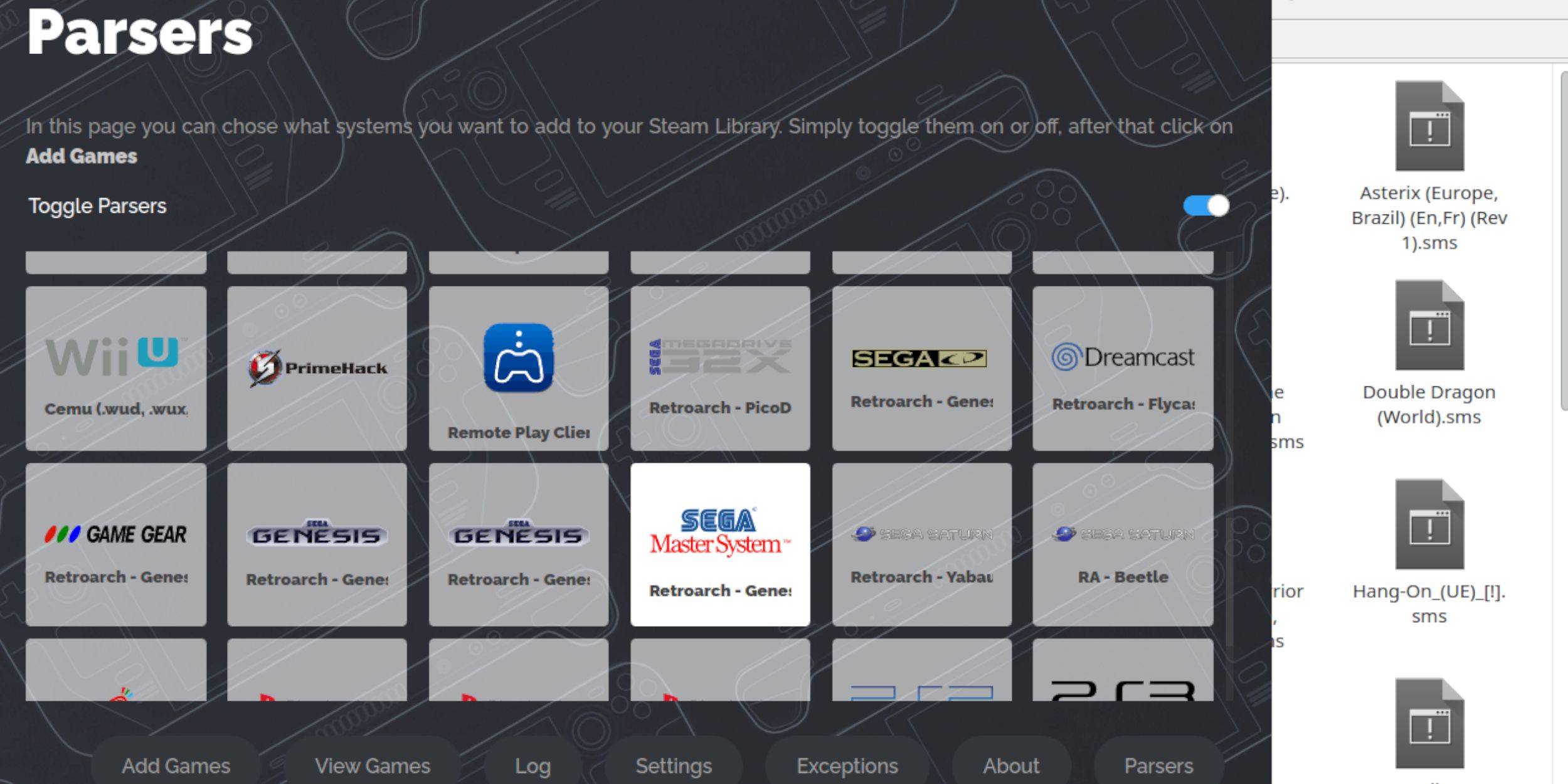
- Open EmuDeck in Desktop Mode.
- Launch Steam ROM Manager.
- Select Sega Master System.
- Choose Add Games > Parse.
- Verify game and artwork display, then select Save to Steam.
Fixing/Uploading Artwork:
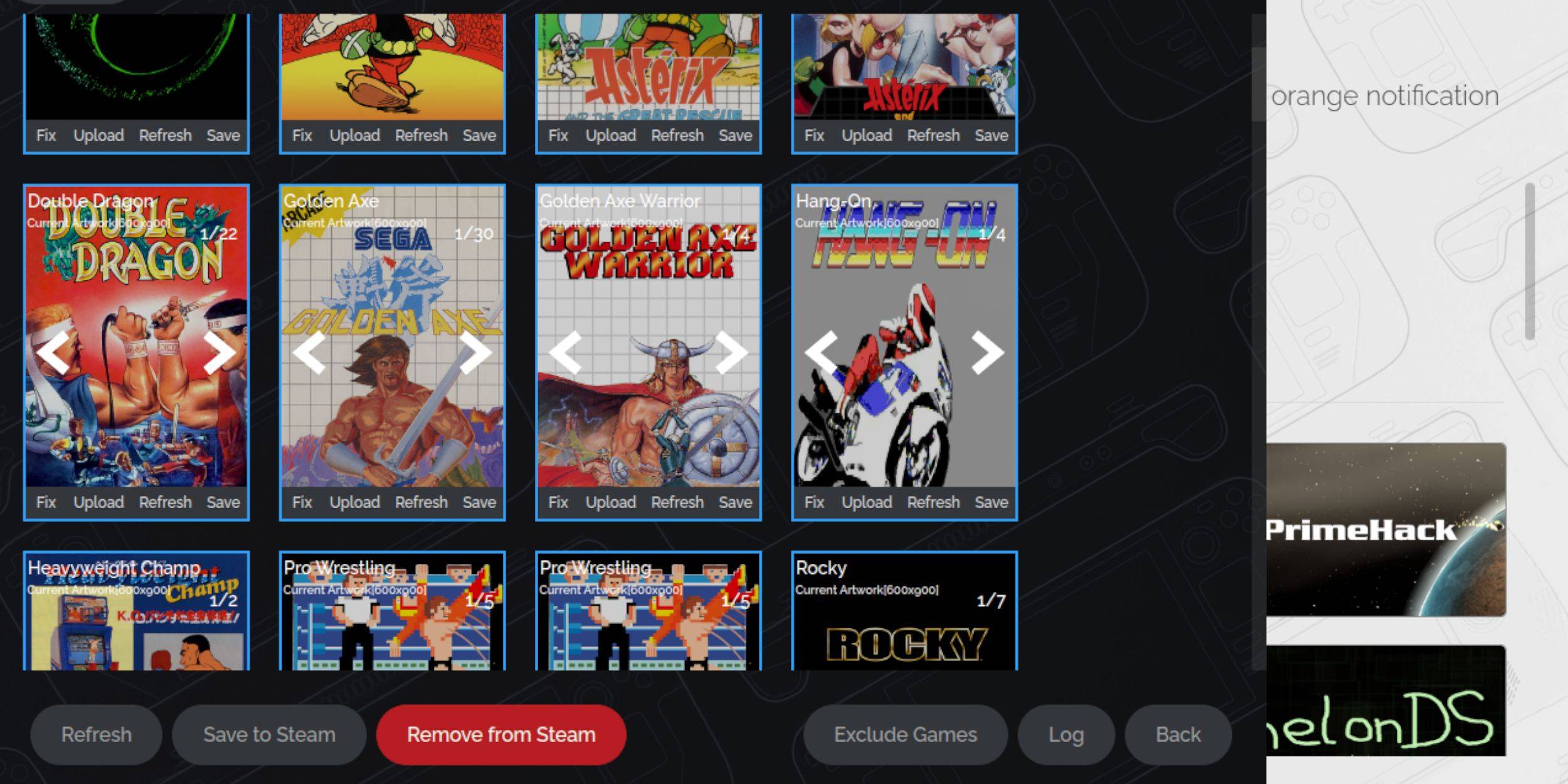
- Fix Missing Artwork: Use the "Fix" option in Steam ROM Manager. Search for the game title if needed.
- Upload Artwork: Save artwork to the Steam Deck's Pictures folder. Use the "Upload" option in Steam ROM Manager to add it.
Playing Games (Gaming Mode):
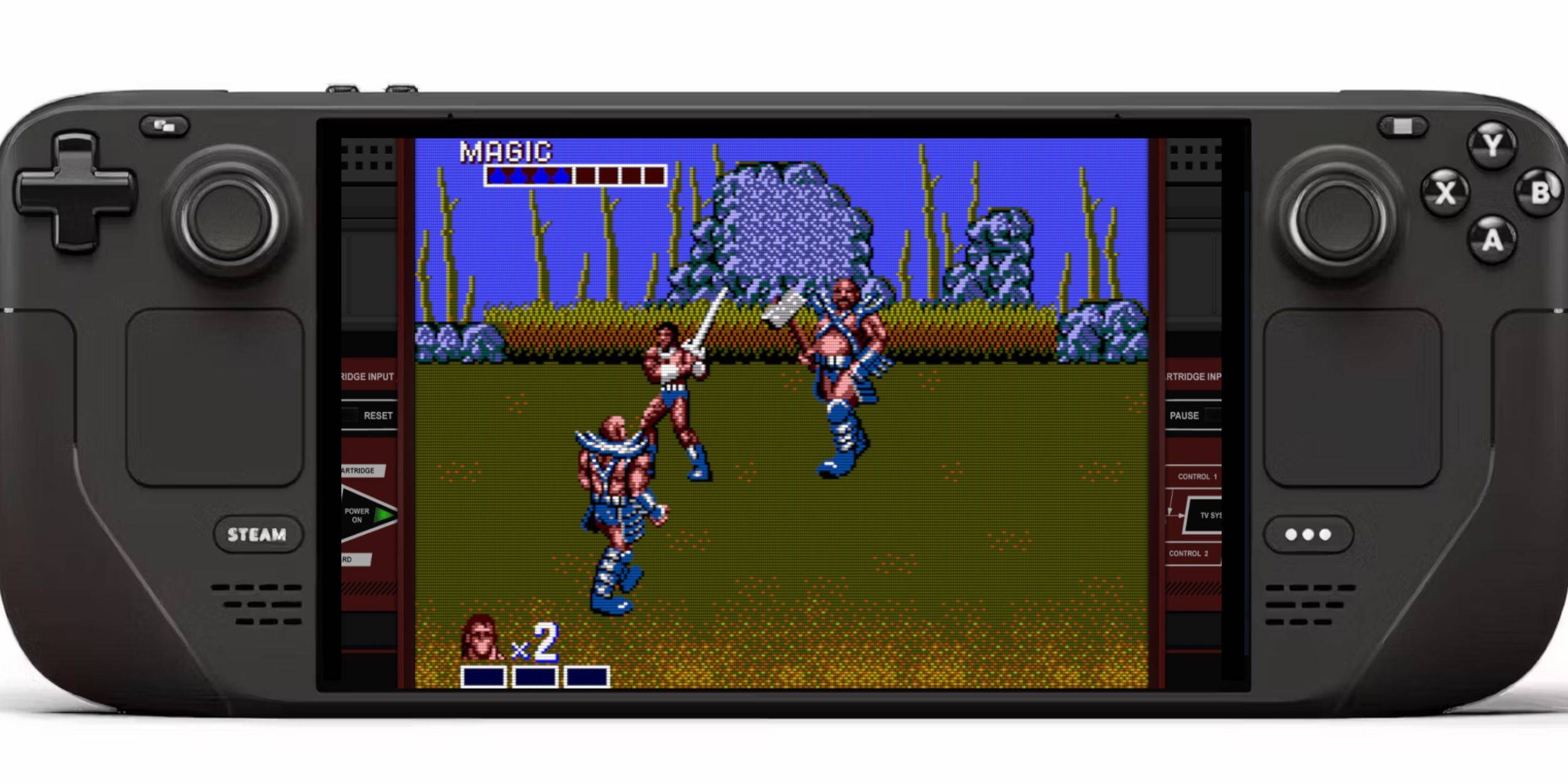
- Switch to Gaming Mode.
- Open your Steam Library.
- Navigate to your Sega Master System collection.
- Select and launch your game.
Improving Performance:
- Open a game, access the Quick Access Menu (QAM, button below right trackpad).
- Go to Performance.
- Enable "Use game profile," set Frame Limit to 60 FPS, and enable Half Rate Shading.
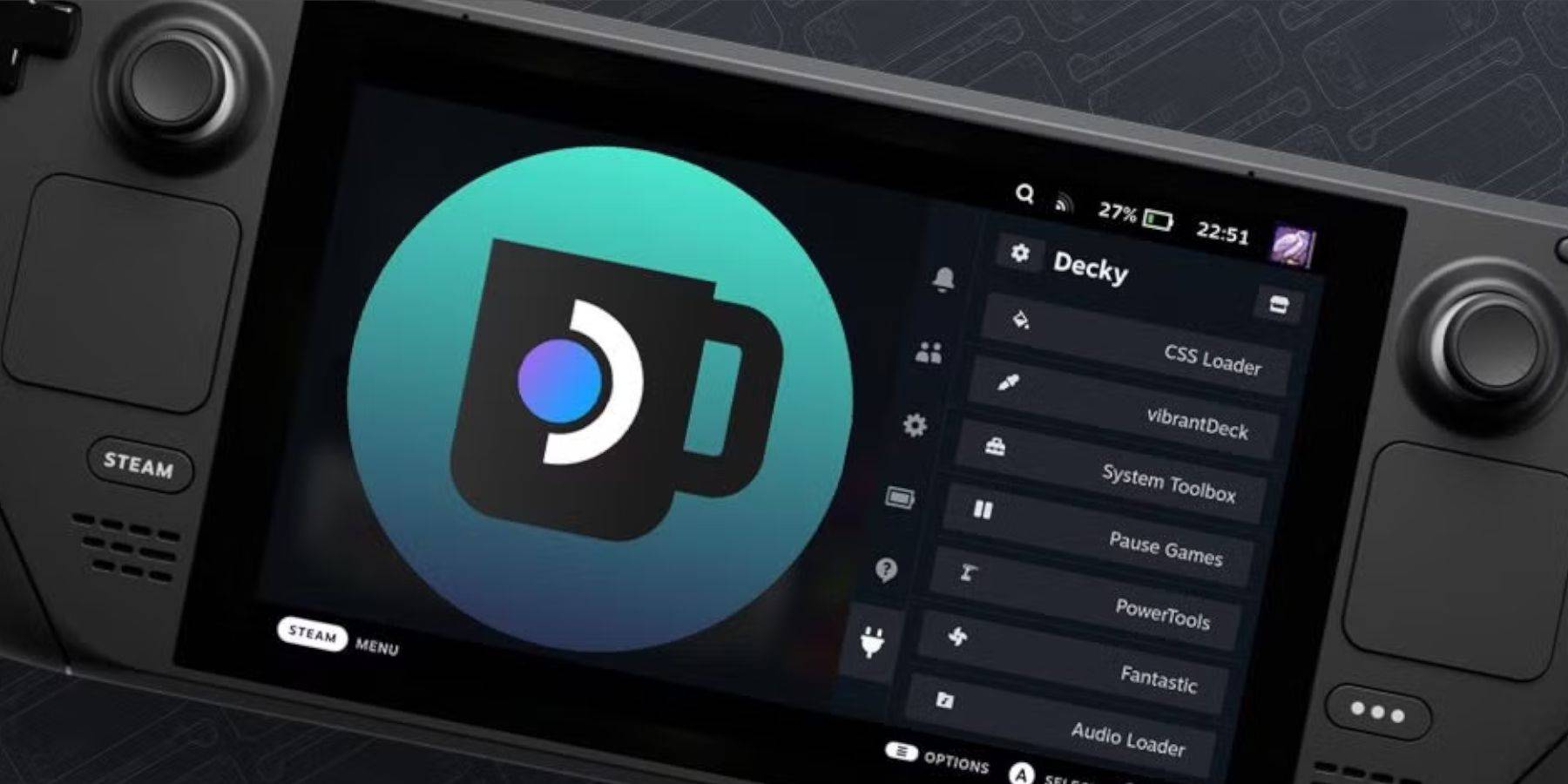
Installing Decky Loader:
- Switch to Desktop Mode.
- Download Decky Loader from its GitHub page.
- Run the installer and choose Recommended Install.
- Restart in Gaming Mode.
Installing Power Tools:
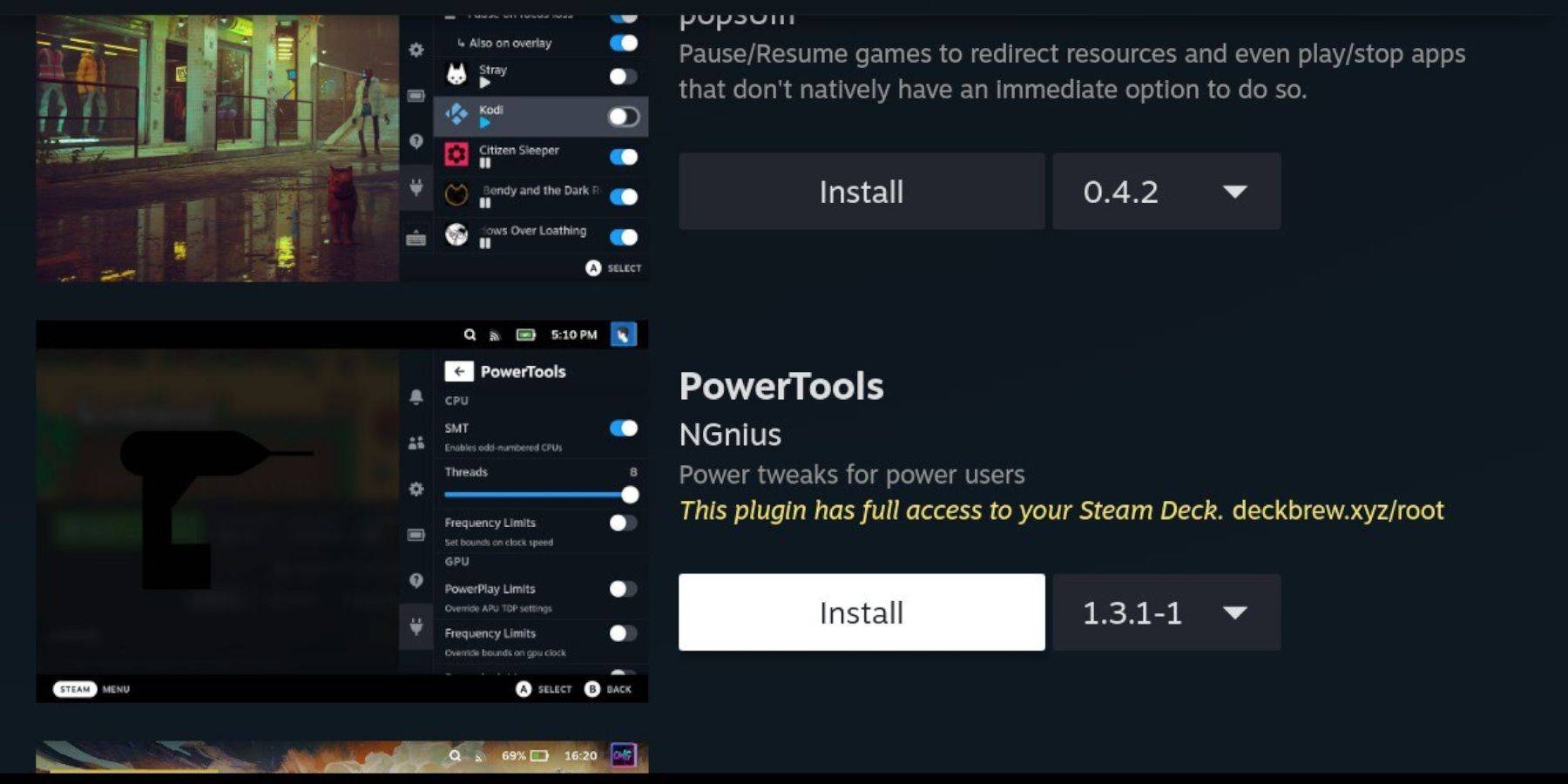
- Access QAM > Decky Loader > Decky Store.
- Install the Power Tools plugin.
- Configure Power Tools (disable SMTs, set Threads to 4, adjust GPU clock in Performance menu).
Fixing Decky Loader After Updates:
- Switch to Desktop Mode.
- Re-download and run the Decky Loader installer (select Execute).
- Enter your pseudo password (create one if needed).
- Restart in Gaming Mode.
Enjoy your retro gaming experience on your Steam Deck!
 Latest Downloads
 Downlaod




 Top News