
Struggling with the "Can't Connect to Host" error in *Ready or Not* can be incredibly frustrating, leaving you eager for a quick fix. While the developers are likely working on a permanent solution, the timeline remains uncertain. Don't worry, though; here are some effective strategies to get you back into the action.
What Causes ‘Can’t Connect to Host’ Error in Ready Or Not
The "Can't Connect to Host" error typically signals a barrier between your system and the game servers. This error can stem from various sources, such as unstable internet connections, corrupted game files, version discrepancies, or interfering background applications. Identifying the exact cause can be tricky, but with the right approach, you can resolve the issue.
Related: How To Fix ‘Serialization Error Action Needed’ in Ready or Not
How To Fix ‘Can’t Connect to Host’ in Ready Or Not
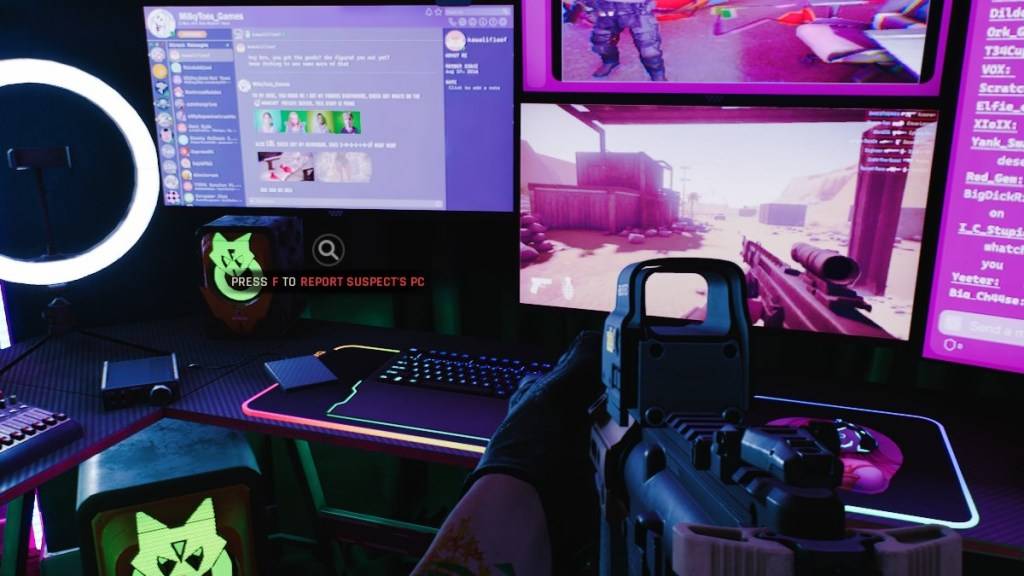
While the "Can't Connect to Host" error in *Ready Or Not* can be a source of frustration, it's often fixable with a few straightforward steps. Here are some solutions you can try:
Restart Your Game: If you're encountering this error for the first time, a simple restart might do the trick. Consider closing and relaunching Steam or your game launcher to refresh the connection.
Verify Game Files: Corrupted or missing game files are common culprits behind many errors. On Steam, you can fix this by navigating to your library, right-clicking on *Ready Or Not*, selecting Properties, then going to Installed Files and choosing Verify Integrity of Game Files. This process might take a few minutes, after which you could receive a small update.
Whitelist *Ready Or Not*: Although rare, Windows Firewall might interfere with your game's connectivity. To prevent this, whitelist *Ready Or Not*. Navigate to Control Panel > System and Security > Windows Defender Firewall > Allowed apps. Click on Allow another App, then browse to your game's installation directory, and select it. Don't forget to click Change Settings to apply your changes.
Close VPN and other Background Apps: VPNs can sometimes lower your ping but might also cause connectivity issues. Close any VPN services before launching *Ready Or Not*. Similarly, ensure that unnecessary background applications are closed to avoid interference.
Switch DX modes: If the error persists, consider altering your launch options by switching DirectX modes. This might resolve issues related to how the game interacts with your system.
Reinstall the Game: As a last resort, perform a clean reinstall of *Ready Or Not*. Uninstall the game through Steam, manually delete any remaining files from the game folder, and clear out any related files in the Local App Data folder (accessible via %localappdata% in the Windows Search Bar).
Dealing with the "Can't Connect To Host" error in *Ready Or Not* might be a hassle, but with these steps, you're likely to overcome the problem and get back to enjoying the game. Fingers crossed, one of these solutions will have you back in the game in no time.
Ready or Not is available now for PC.
 Latest Downloads
 Downlaod




 Top News