
This guide details how to install EmuDeck and play Game Boy games on your Steam Deck, optimizing performance with Decky Loader and Power Tools. The Steam Deck, a powerful handheld, is easily customizable for retro gaming.
Before You Begin:
 Ensure you have:
- A fully charged Steam Deck.
- An A2 microSD card for games and emulators.
- Legally obtained Game Boy ROMs.
- A Bluetooth or wired keyboard and mouse (recommended for easier navigation).
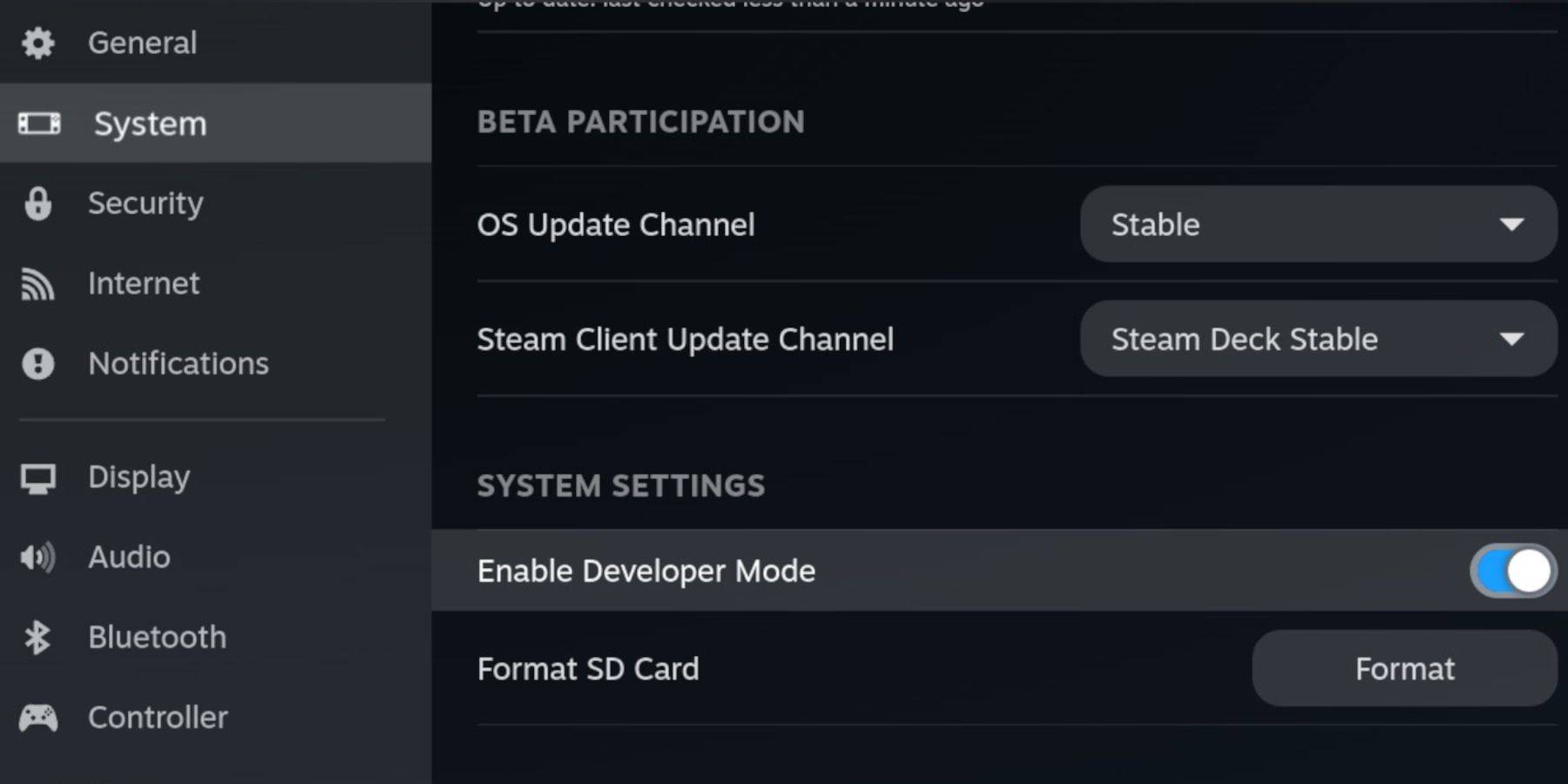
Enable Developer Mode:
- Press the Steam button.
- Navigate to System > Developer > Enable Developer Mode.
- Enable CEF Debugging in the Developer menu.
- Power > Switch to Desktop Mode.
Install EmuDeck:
- Connect your keyboard and mouse.
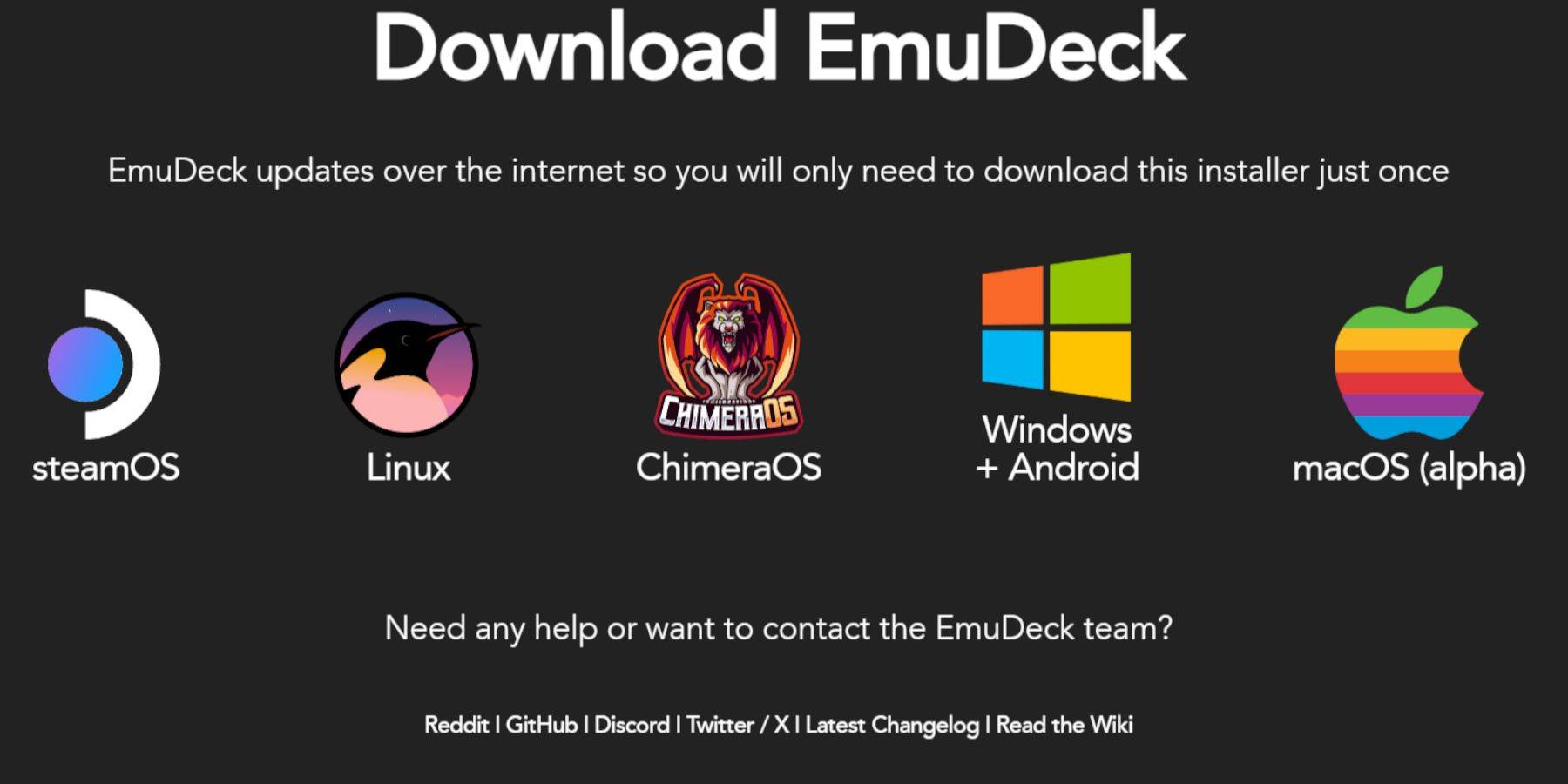
- Download EmuDeck from the official website in Desktop Mode.
- Choose SteamOS and select "Download for Free".
- Opt for Custom Install and select your SD card (Primary) as the installation location.
- Choose your desired emulators (RetroArch, Emulation Station, Steam ROM Manager recommended).
- Enable Auto Save and complete the installation.
Quick Settings (EmuDeck):
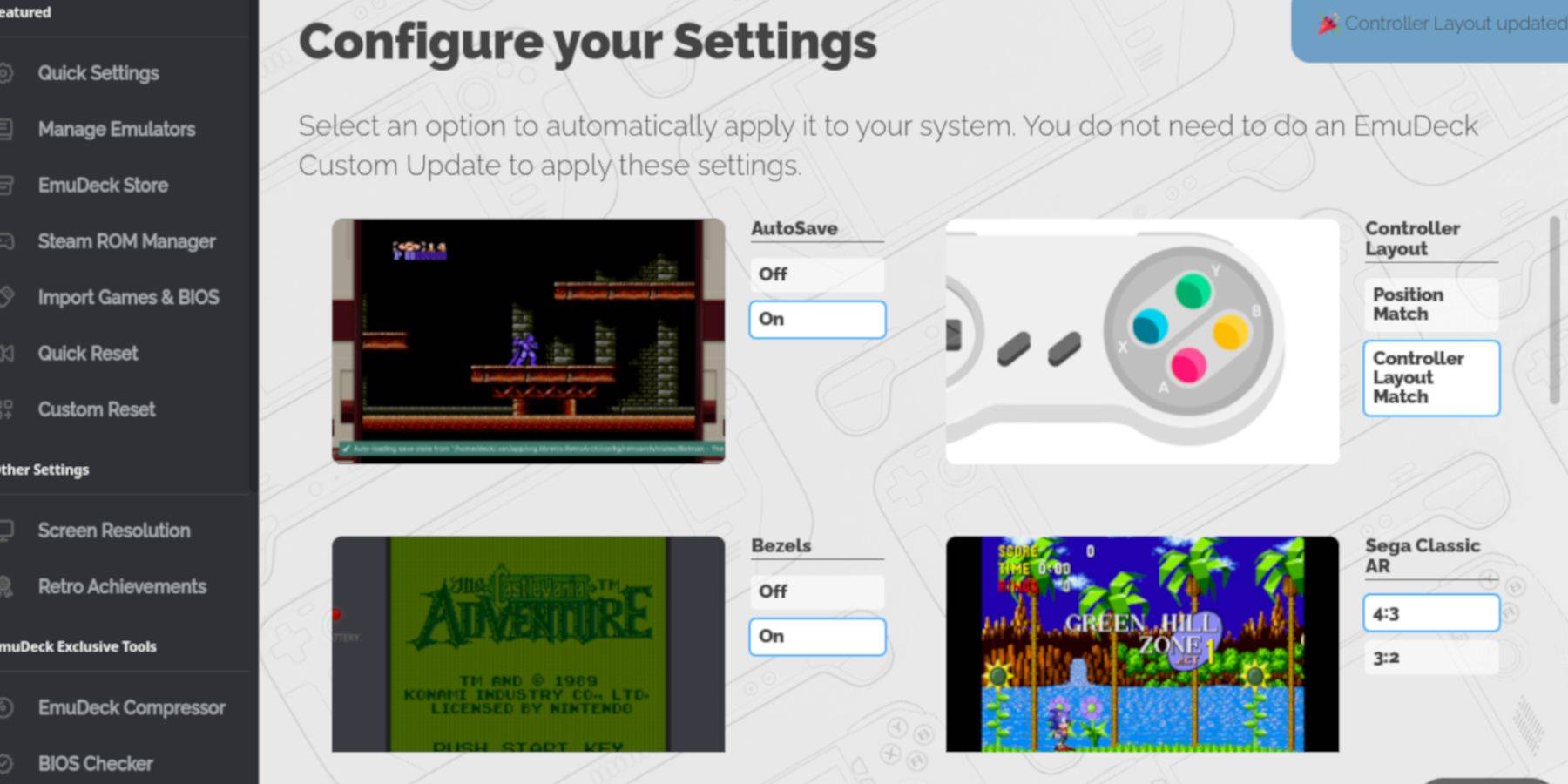
- Open EmuDeck and select Quick Settings.
- Enable AutoSave, Controller Layout Match, Bezels, Nintendo Classic AR, and LCD Handhelds.
Adding Game Boy Games:
- Use Dolphin File Manager to access your SD card (Primary).
- Navigate to Emulation > ROMs > gb.
- Transfer your
.gbROMs to this folder. Ensure correct filenames.
Steam ROM Manager:
- Open EmuDeck and select Steam ROM Manager.
- Close the Steam client if prompted.
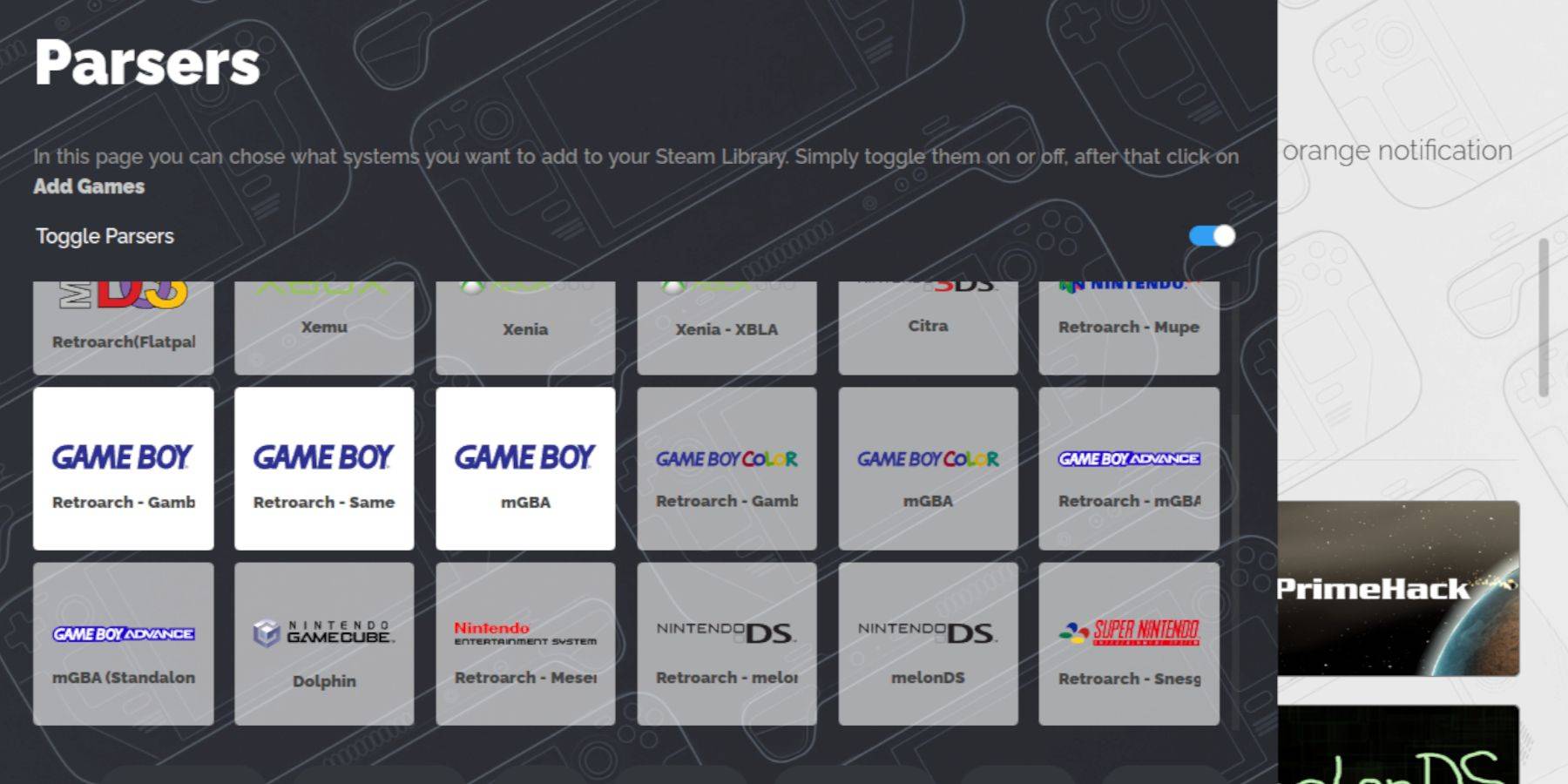
- Disable Toggle Parsers.
- Add your Game Boy games.
- Save to Steam.
Playing Game Boy Games:
- Press the Steam button.
- Open Library > Collections.
- Select your Game Boy collection and launch a game.
Customize Colors (RetroArch):
(Not all games support this)
- Launch a game.
- Open the RetroArch menu (Select + Y).
- Go to Core Options > GB Colorization.
- Enable Auto or Off for color adjustments.
Using Emulation Station:
- Press the Steam button.
- Open Library > Collections > Emulators > Emulation Station.
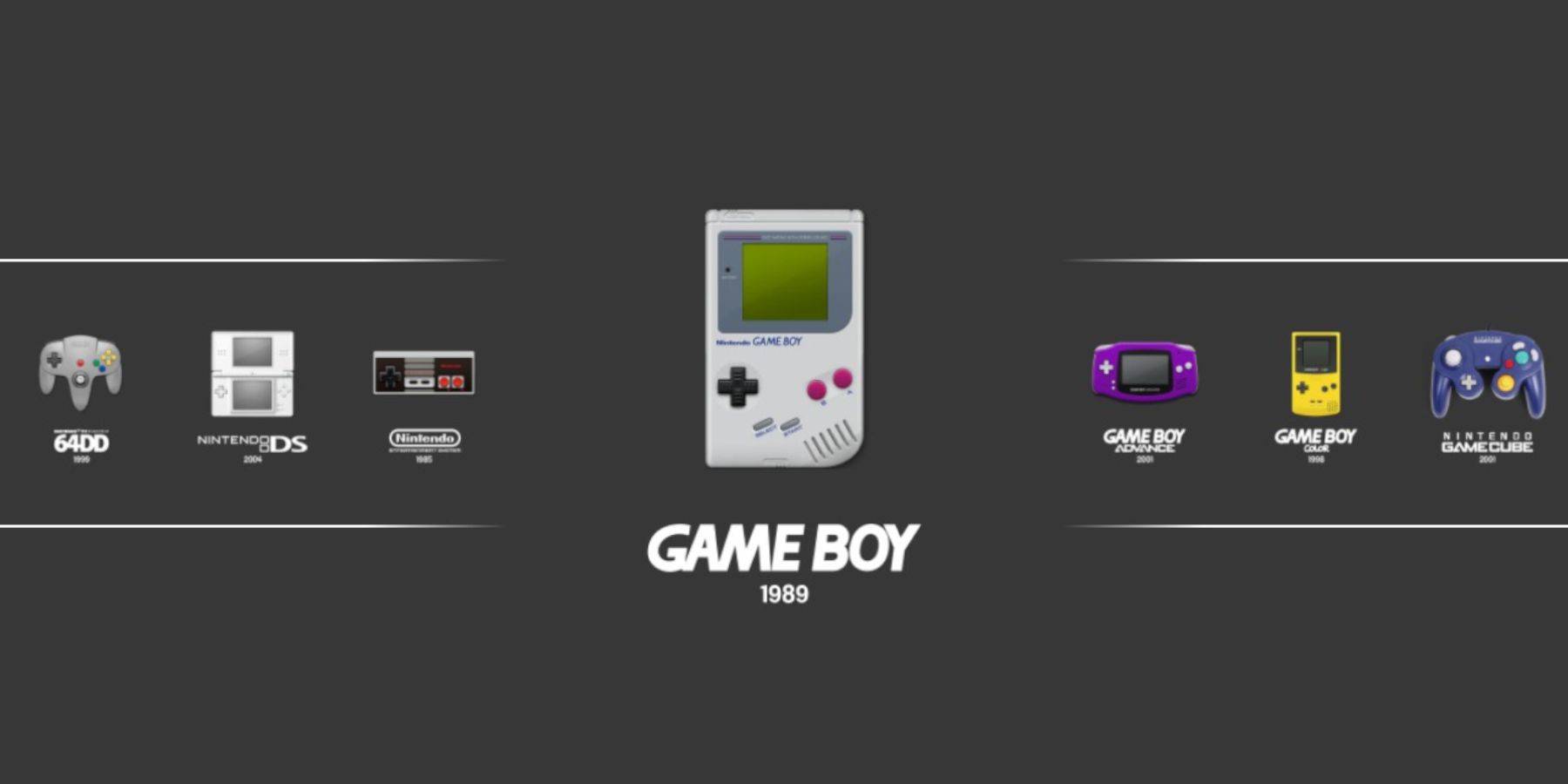
- Select Game Boy and launch your games.
Install Decky Loader:
- Switch to Desktop Mode.
- Download Decky Loader from its GitHub page.
- Run the installer and choose Recommended Install.
- Restart your Steam Deck.
Install Power Tools:
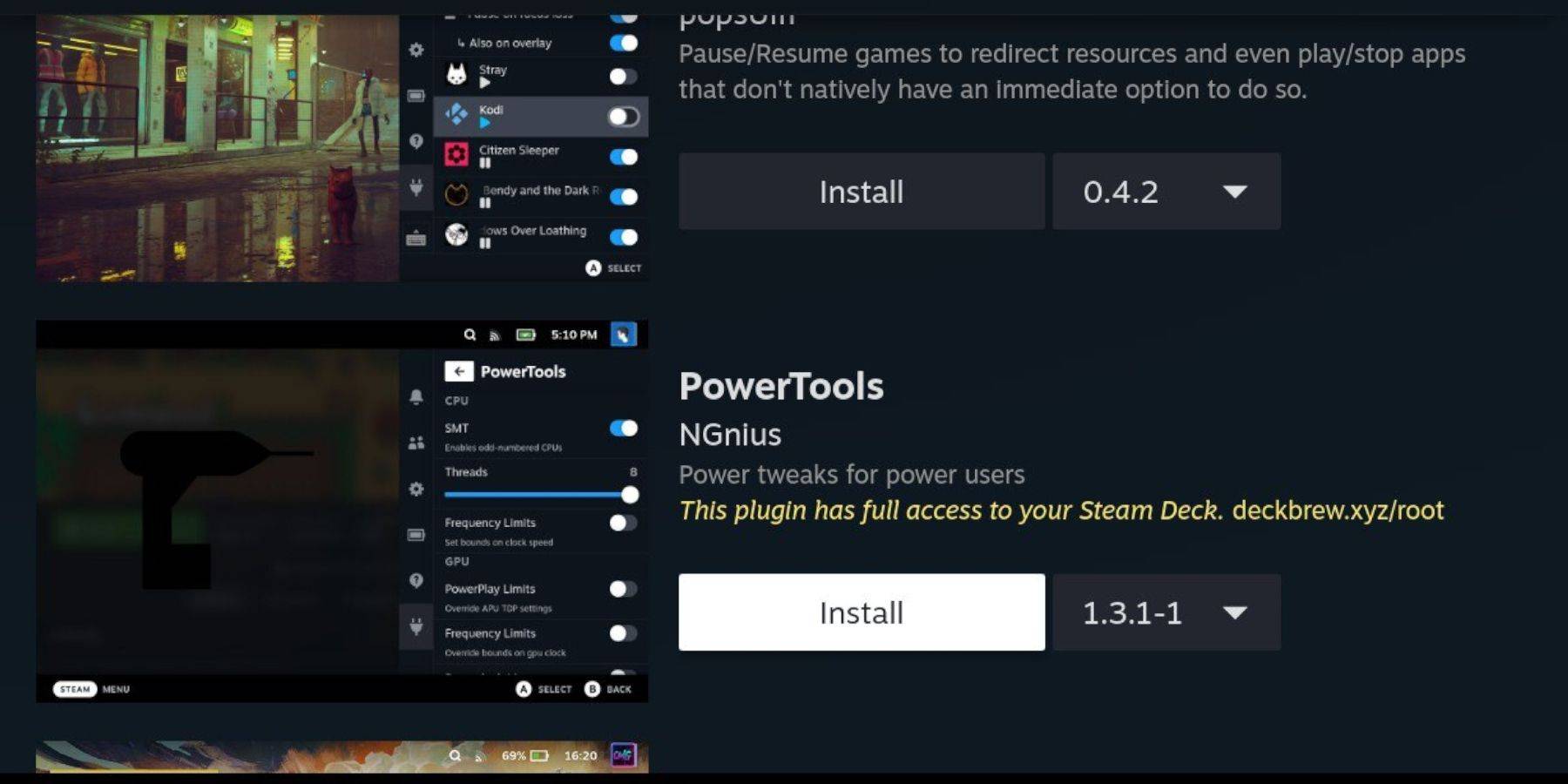
- Access Decky Loader's Quick Access Menu (QAM).
- Open the Decky Store and install the Power Tools plugin.
Power Tools Settings:
- Launch a Game Boy game.
- Open Power Tools via QAM.
- Turn off SMTs. Set Threads to 4.
- Open the Performance menu (QAM), enable Advanced View.
- Enable Manual GPU Clock Control and set GPU Clock Frequency to 1200.
- Enable Per Game Profile.
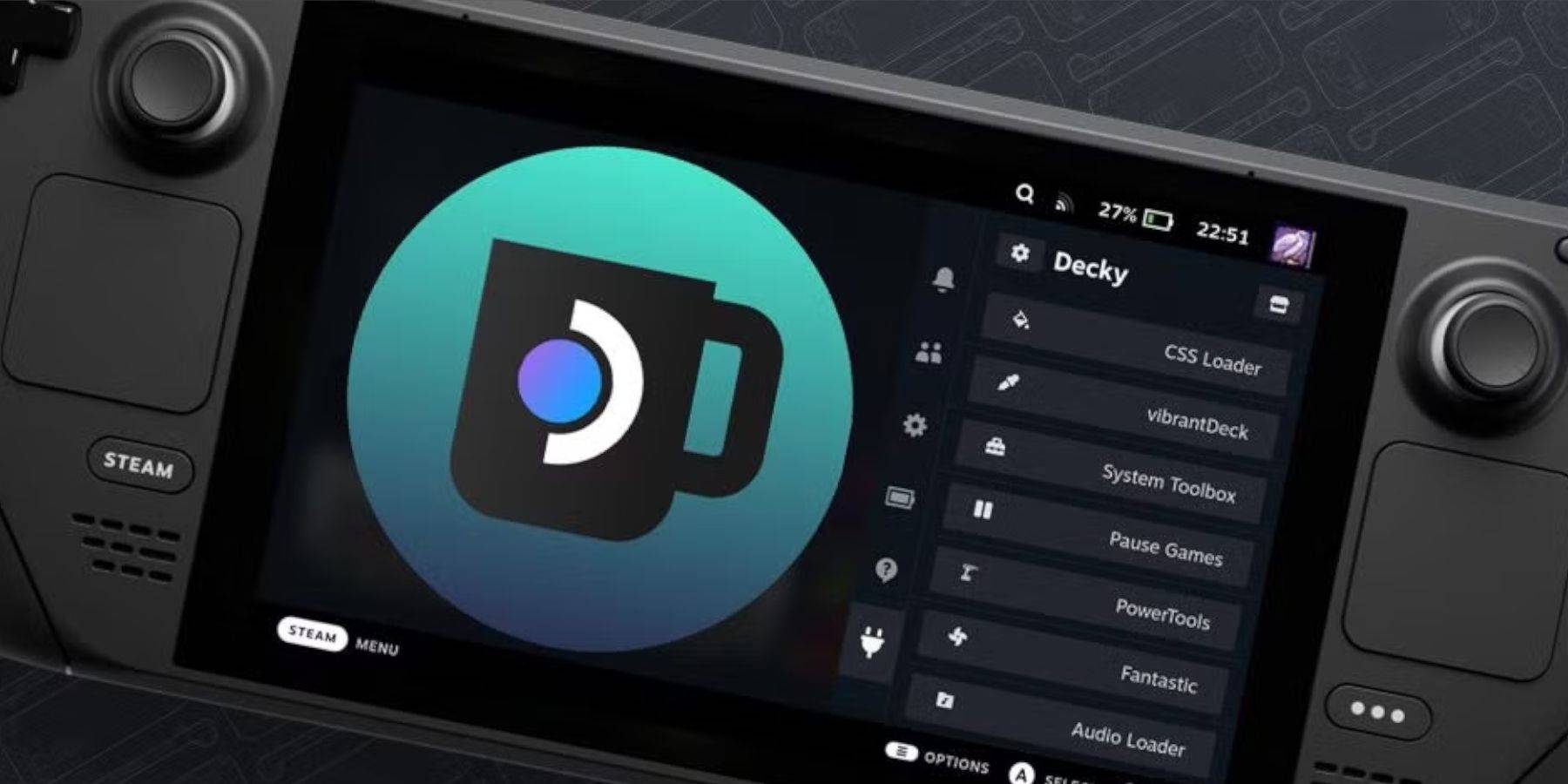
Restoring Decky Loader After a Steam Deck Update:
- Switch to Desktop Mode.
- Re-download Decky Loader from GitHub.
- Run the installer (Execute only).
- Enter your pseudo password (create one if needed).
- Restart your Steam Deck.
 Enjoy your enhanced Game Boy experience on your Steam Deck! Remember to always use legally obtained ROMs.
 Latest Downloads
 Downlaod




 Top News