
If you've been eagerly anticipating the chance to use your PlayStation VR2 headset with a gaming PC to explore SteamVR's extensive game library, your options were previously limited. Fortunately, Sony has alleviated this issue by releasing a $60 adapter last fall, which allows PS VR2 users to connect their headset to any modern gaming PC that meets the necessary specifications. However, connecting the PS VR2 to a PC isn't just about plugging in the adapter; despite being touted as plug-and-play, there are certain features that might require additional setup based on your PC's configuration.
How to Connect to Your PC With the Adapter
Before you proceed with the setup, ensure you have all the required components. The adapter enables the PS VR2 to be compatible with most SteamVR games, but you'll need to confirm your PC has Bluetooth 4.0 connectivity, a DisplayPort 1.4 cable, a nearby AC power outlet, and both the PlayStation VR2 and SteamVR apps installed on Steam. Additionally, the PS VR2's Sense controllers are charged via USB-C, so you'll need two USB-C ports and cables, although Sony offers a $50 Sense controller charging station that simplifies this process.
What You'll Need
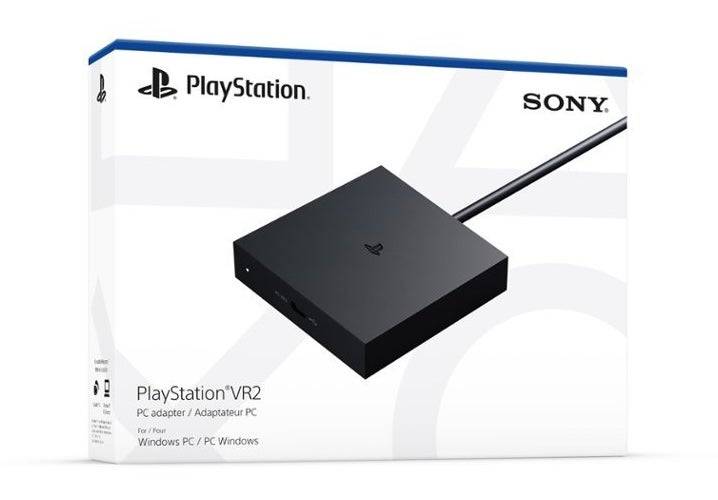
Before you begin, check if your gaming PC is compatible with the PlayStation VR2 headset by visiting Sony’s official PS VR2 PC Adapter preparation page. If your system meets the requirements, here’s what you'll need:
- A PlayStation VR2 headset
- The PlayStation VR2 PC adapter (which includes an AC adapter and a male USB 3.0 Type-A cable)
- A DisplayPort 1.4 cable (sold separately)
- A free USB 3.0 Type-A port on your PC (Sony advises against using extension cables or external hubs, though a powered external hub worked well in our tests)
- Bluetooth 4.0 capability on your PC (either built-in or via an external Bluetooth adapter)
- Steam and SteamVR installed on your PC
- The PlayStation VR2 app installed on Steam
How to Connect: Step-by-Step Instructions
Once you have everything ready, follow these steps to connect your PS VR2 to your PC:
- Install SteamVR and the PlayStation VR2 app: Download and install the Steam Windows client if you haven't already. Open Steam, and install the SteamVR app and the PlayStation VR2 app.
- Set up your PC’s Bluetooth and pair your Sense Controllers: Navigate to Settings > Bluetooth & devices from your PC's start menu, and toggle Bluetooth to "On." To pair the controllers, hold down the PlayStation and Create buttons on each until the white light blinks. Then, on your PC, click "Add device" under "Devices" in the Bluetooth & devices settings, select "Bluetooth," and connect the PlayStation VR2 Sense Controller (L) and (R). If your PC lacks built-in Bluetooth 4.0, use a compatible adapter like the Asus BT500. If using an external adapter on a PC with an internal Bluetooth radio, disable the internal Bluetooth driver in Device Manager.
- Set up the adapter and connect it to your PC: Plug the PS VR2 adapter into an unused USB 3.0 Type-A port on your PC. Connect the adapter to a free DisplayPort slot on your GPU using a DisplayPort 1.4 cable. Attach the AC power adapter to the adapter's DC IN connector and plug it into an electrical outlet. The adapter's status indicator will turn solid red once powered on. Connect the PlayStation VR2 to the adapter via the front USB-C port.
- Turn off Hardware-accelerated GPU scheduling (optional): For PCs with newer GPUs like Nvidia RTX 40-series, disable Hardware-accelerated GPU scheduling for stability in certain VR games. Navigate to Settings > System > Display > Graphics, click "Default graphics settings," and toggle off "Hardware-accelerated GPU scheduling." Restart your PC.
- Launch the PlayStation VR2 App and SteamVR: Power on the PS VR2 headset by holding the central button until it vibrates. Turn on SteamVR and set it as your default OpenXR runtime. Open the PlayStation VR2 app to update your Sense controllers' firmware and set up your headset, including your Play Area and preferences. Follow on-screen instructions to adjust your IPD, display distance, and headset fit. Once setup is complete, you can enjoy SteamVR games.
Can You Connect to PC Without an Adapter?
Currently, connecting the PS VR2 to a PC without the adapter is not officially supported. However, some users have reported success using GPUs from around 2018 with a USB-C port and VirtualLink, allowing a direct connection if the PlayStation VR2 app is installed, as mentioned in a Road to VR report.
 Latest Downloads
 Downlaod



 Top News